Gameplay
Over the Hill Photo Mode: Take and Find Your Photos
Learn Over the Hill Photo Mode controls, use the Safari Camera for wildlife credit, and find saved pictures separately from your Steam screenshots.
Updated
- Guides
- 45
- Topics
- 3
- On this page
- 6
Take photos and open their saved folder
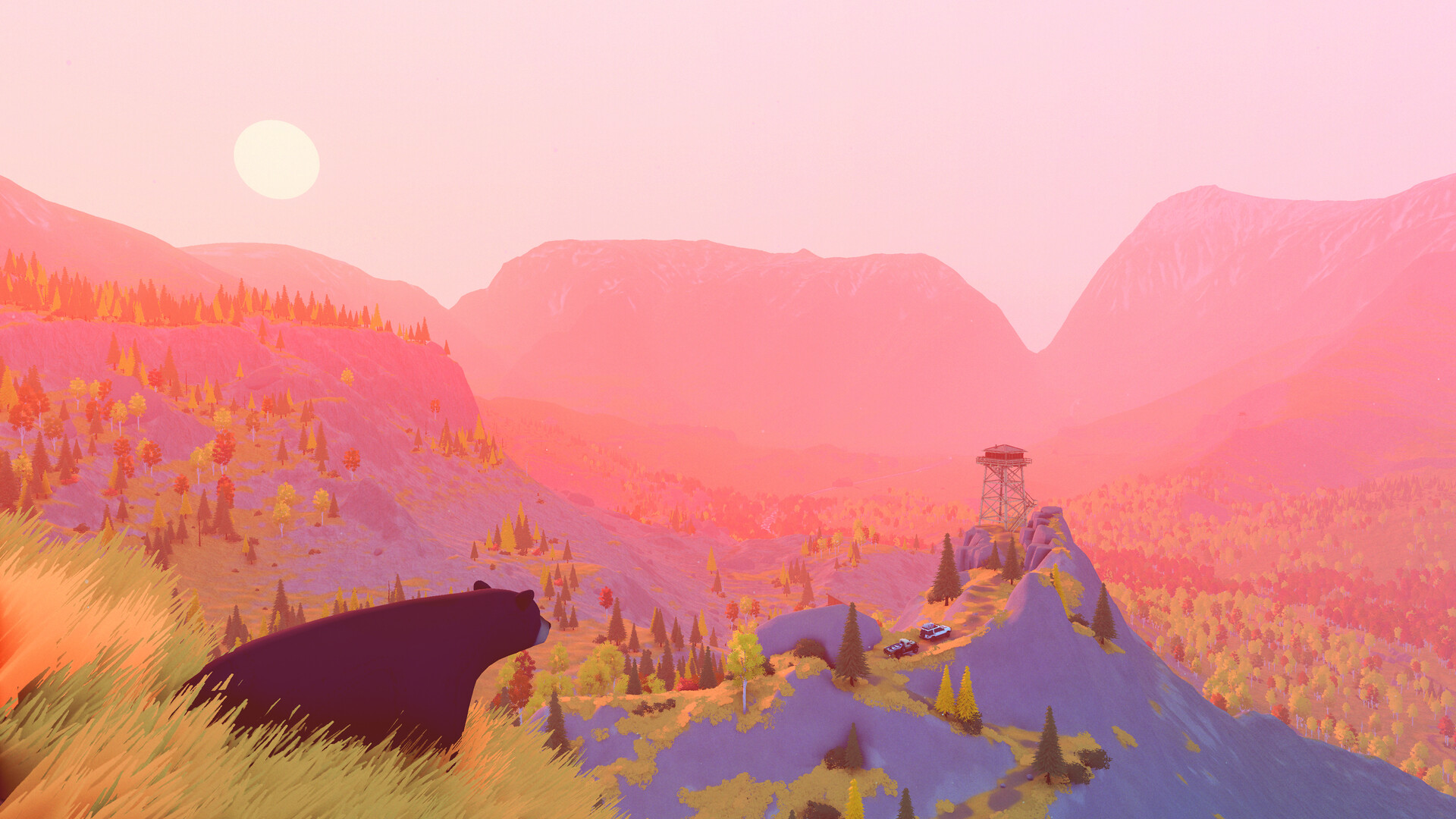
Open Photo Mode from the pause menu or a scenic viewpoint, compose your picture, and use Take Photo to capture it. Find your saved pictures through Extras → Open screenshots folder in the main menu; for wildlife discovery credit, use the separate Safari Camera from the radial menu.
Compose and capture a Photo Mode picture
- Open Photo Mode from the pause menu or at a scenic point. This gives you a free camera around your vehicle, with Camera and Effects tabs for preparing the picture.
- Move the camera into position using W, A, S and D on keyboard, or the left stick on a controller. Choose an angle that gives your vehicle or the landscape room in the frame.
- Adjust the camera height with Space to rise and Ctrl to descend. On Xbox controllers, use RB and LB; on PlayStation controllers, use R1 and L1 to find a higher or lower viewpoint.
- Adjust the camera roll with Q or E, or left and right on the controller D-pad. Use this to straighten your composition or experiment with a tilted view of the trail.
- Set the zoom using the mouse wheel, or up and down on the controller D-pad. Compare a wider landscape composition with a tighter vehicle portrait before settling on the framing.
- Open the photo effects with F on keyboard, Y on Xbox, or Triangle on PlayStation. This gives you access to the adjustments used to shape the picture's appearance.
- Adjust focus using the Depth of Field, Autofocus and Focus Distance settings. Watch your intended subject while making changes so that the part you care about stays clear.
- Adjust Exposure to suit the scene. Make small changes while checking both the brightest and darkest parts of the composition, especially when photographing a vehicle against a bright sky.
- Toggle the interface with Tab on keyboard, a right-stick press on Xbox, or R3 on PlayStation. Inspect the composition without the interface before committing to the shot.
- Take the picture with the left mouse button, A on Xbox, or Cross on PlayStation. After capturing it, use the screenshots-folder shortcut described below to find the saved image.
Choose the focus, finish and vehicle appearance
Depth of Field starts Off, while Autofocus starts On. Focus Distance and Aperture are available alongside those settings. Start with the framing, then experiment with focus rather than changing everything together and losing track of what improved the picture.
For the overall finish, Photo Mode offers Contrast, Saturation, Temperature and Tint, plus Vignette, Bloom, Lens Dirt and Film Grain. You can also adjust headlights and the vehicle's muddiness, dustiness, snowiness, wetness, raininess and sandiness. Try a restrained look first, then add effects according to the mood you want.
Photograph wildlife for Compendium credit
- Open the radial menu with Q on keyboard, a right-stick press on Xbox, or R3 on PlayStation. The Safari Camera and Compendium are available through this menu.
- Select the Safari Camera for your wildlife photograph. This is the camera used for animal registration; the free camera in scenic Photo Mode does not replace it.
- Frame the animal in the center with a clear line of sight and a suitable distance. The Safari Camera detects animals up to 100 m away, but a valid photograph also depends on visibility and framing.
- Check the target indicator before taking the photograph. Players describe green for an undiscovered animal, orange for a previously discovered animal, and grey when the camera has not acquired a valid subject.
- Photograph the recognized subject to document it for the Compendium. If the camera has not acquired a valid target, adjust the framing, distance or view past nearby scenery before trying again.
- Review the discovery in your Compendium after the shot. If you photograph the same animal again, the game asks which photograph to keep, so use another attempt when you want a better picture.
The first photograph of each species awards Pebbles once. A replacement photograph is an opportunity to improve the image you keep. If discovery credit is your goal, check the recognized subject and its Compendium entry before treating a saved picture alone as proof of a new discovery.
Open the folder containing your saved pictures
- Choose Extras from the main menu to reach the option for accessing pictures saved by the game.
- Choose Open screenshots folder to open the game's photo directory directly. This is the simplest starting point when you cannot find a picture.
- Copy the pictures you want to keep or share into a folder of your choice, giving you an easy place to find them afterward.
Players report that the folder shortcut reveals saved pictures beyond the five menu previews. Use the folder when an older shot is absent from the preview selection. Browse the files there before assuming that the game has lost your photograph.
Find game photos separately from Steam screenshots
On Windows, the reported game-photo location is Documents → My Games → over the hill → screenshots. Documents may be redirected by Windows or OneDrive, and players report variations in the folder spelling. Use the Extras shortcut to locate the directory used by your installation.
On Linux or Steam Deck, the location depends on the native or Proton setup and where the game is installed. Start with the in-game folder shortcut, then inspect the folder in Desktop Mode on Steam Deck if needed. This avoids searching an installation path that may differ from yours.
Images captured through Steam's screenshot shortcut belong to Steam's screenshot manager. Pictures taken with the game's wildlife camera do not automatically appear in that collection. When a picture seems missing, check the collection associated with the capture method you used.