Gameplay
Over the Hill Custom Liveries: Install and Create
Install custom liveries in Over the Hill, select them at the Mechanic, and create your own paint pack with local testing and mod.io sharing steps.
Updated
- Guides
- 45
- Topics
- 3
- On this page
- 7
Install a design or make your own
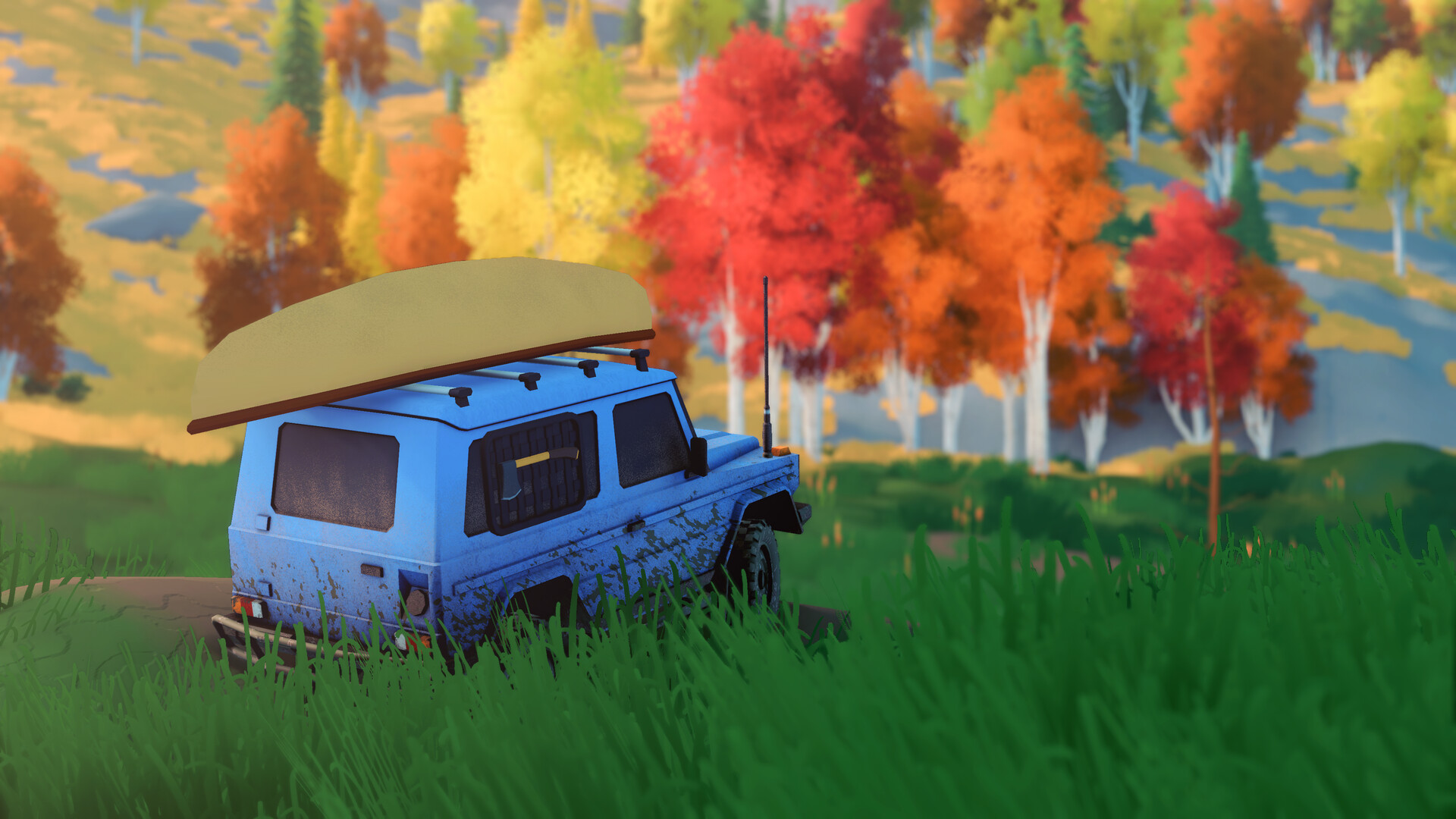
To install a custom livery in Over the Hill, subscribe to a compatible livery on mod.io, enable it, then select it under Livery Mods at the garage or Mechanic. To create your own, paint the target vehicle’s UV template as a PNG, configure manifest.json, and test the unzipped pack locally before sharing it through mod.io.
Choose the right customization workflow
The official modding workflow supports custom vehicle paint liveries. New cars, physics changes, and terrain mods are outside its supported scope. Use a livery pack when you want to give an existing vehicle a different paint design.
Decide whether you want to use another creator’s design or make your own. A subscribed livery follows the mod.io installation route, while an unzipped local pack lets you test your own work through LocalLiveries. You can finish testing a local design before preparing it for publication.
Install a livery from mod.io
- Subscribe to a compatible vehicle livery on mod.io. Choose a design intended for the vehicle you want to customize, so the pack matches your target vehicle.
- Enable the subscribed livery pack. Keep this separate from choosing the paint itself: the installation workflow requires the compatible pack to be enabled before you select its design.
- Select the design under Livery Mods at the garage or Mechanic for the target vehicle. This is the in-game selection step that applies the custom livery you subscribed to.
Create and test a local livery
- Open the Official Livery Modding Guide on mod.io for the pack setup instructions. Use it alongside the following local workflow when preparing your vehicle’s paint files.
- Paint the target vehicle’s UV template and save the texture as a PNG. For your first draft, use a design that makes it easy to spot where you want to adjust the paint after testing.
- Configure manifest.json with the target vehicle’s internal car name and the texture filename. Check those entries carefully rather than guessing an internal name or using a filename that differs from your PNG.
- Create a separate subfolder for your pack under Documents/My Games/over the hill/LocalLiveries on Windows. Each local pack belongs in its own subfolder within that location.
- Place manifest.json and its matching PNG textures inside the pack’s subfolder, unzipped. Keep the texture filenames consistent with the manifest so you can check the pack’s contents against its configuration.
- Turn on Show local mods in the target vehicle’s Livery Mods tab. This includes the local packs you are preparing in the livery selection workflow.
- Use Refresh local mods to reload the local packs. Return to this action when testing changes to your design, so you can inspect the refreshed version.
- Select your local livery to inspect the result on the vehicle. Look over the design and revise any areas you dislike before preparing the pack for sharing.
Publish the finished pack for teammates
Local packs remain private, while published mod.io packs can be seen by teammates. Finish checking your design locally before moving to the upload workflow. Publishing is the sharing route when you want other players to see the finished livery.
- Compress the finished livery pack into a ZIP after local testing. The published mod.io workflow uses a ZIP upload, while the local testing workflow uses an unzipped folder.
- Upload the finished ZIP to mod.io to share the pack. This moves your design from a private local pack to the published livery workflow.
Prepare custom liveries for multiplayer
- Check the Allow Mods setting when creating a room in the Server Browser. The host chooses this option during room setup, so include it when checking a session intended for custom liveries.
Fix missing liveries or loading problems
- Update the game if subscribing to a livery prevents other mods from loading. The October 19 Minor Update fixed an issue involving livery mods that use relative texture paths.
- For a missing local pack, check its own subfolder under LocalLiveries and make sure it contains manifest.json and the matching PNG textures. The local pack should be unzipped.
- For local edits that are not appearing, check Show local mods and use Refresh local mods in the vehicle’s Livery Mods tab. Then inspect the local design again.
- For a subscribed design that is not selected, check that the pack is compatible with your target vehicle and enabled. Then return to Livery Mods at the garage or Mechanic to select it.